User Information
[Contents] [Introduction] [Preferences ] [Operation] [Maps] [Telnet] [FAQ]
There are a number of program options which can be set from this window. When the User Preferences window is open, automatic updates are halted.
User Information
User Information
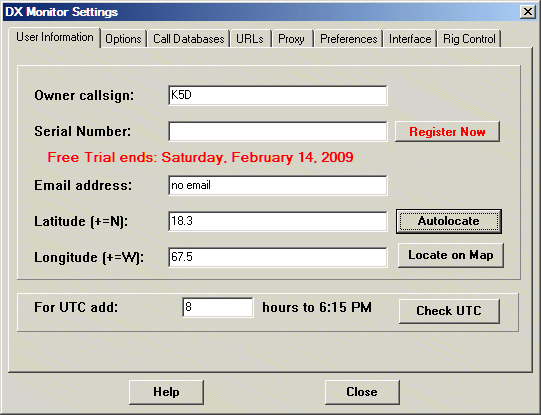
Owner Callsign. The callsign you used to register DX Monitor. If you use DX Monitor with multipe callsigns, you can register more than one using the web Registration Form. Select prepaid and type your original registered callsign in the comment box. You will receive a different serial number for each callsign.
Serial Number. You will receive your serial number by email after registering and paying for DX Monitor. If you have not registered, the program will cease to function at the end of the trial period. Press the Register button to go to the Registration Form.
Email Address: your email address. This will only be used to send you notifications of important problems with the program and announcements of major upgrades. Your email address will not be divulged to third parties and you will receive no other advertising from the author.
Latitude: North is +, south is -. (Press the Autolocate button for an estimate.)
Longitude: West is +, east is -.
Your location will be used to calculate beam headings,
to create the Azimuthal (Great Circle) map and for distance calculations to the DX and
spotting stations.
For UTC add: adjustment to your computer clock for UTC. It should not be necessary to change this setting if you have your computer clock set up correctly.
Check UTC. Press this button to show the Internet Time Window which will show the correct UTC time.
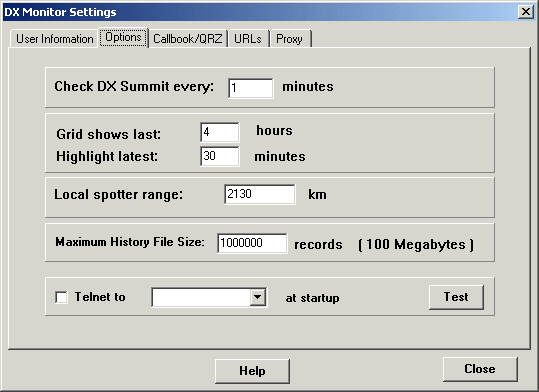
Check DX Summit. Set the time between automatic updates from DX Summit and other sources. The exact time will be randomized so that all the DX Monitor users do not poll the summit simultaneously. If none of the Automatic Downloads items is checked in the Update Menu on the main window, no automatic downloading will occur.
Grid Shows Last. The main grid display will show up to the number of hours set in this option. If more spots arrive than the maximum in the program’s short term memory, the older spots will fall off the end of the main grid display. They will still be visible in the History Window.
Highlight Latest. DX Spots which have arrived in the past few minutes will be highlighted in the main grid and Band Map windows.
Local Spotter Range. The main grid and the Band Map have options for showing only those spots sent by spotters local to your location. Set the range here. The spotter location is determined from their prefix and callsign. If you have the RAC Callbook installed, US station locations will be retrieved from the Callbook. The data file regions.dat is a text file containing latitudes and longitudes for regions of countries (K1, K2, K3, etc). You can modify this file to add new regions, or move the center of a prefix region. If you enter a lot of new information about your country, please let me know so that the data can be included in a new regions.dat file.
Maximum History File Size. The history data is stored in a text file DXHistory.txt in the data subfolder of DX Monitor. This setting limits the size of the file to conserve disk space and avoid long delays on slower computers. One million records requires about 100 Megabytes of disk space and is not a problem for current computers running XP or W2K.
Telnet at Startup. If you always use a local telnet server, you can tell DX Monitor to start a telnet connection automatically every time the program is run. Select the server from the pull down menu and check the box shown. Press Test to open the Telnet Window now.
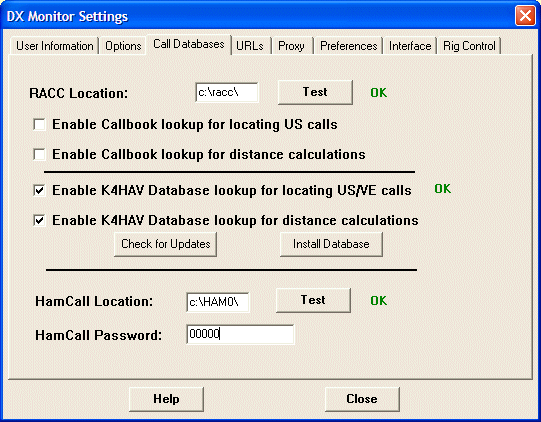
DX Monitor can access the RAC Callbook data on CD. Note that this is the Radio Amateur Callbook CD, not the QRZ CD and not the HamCall CD and not the Buckmaster CD.
Drive: Set the drive and folder of the Callbook data. Note that it is possible to copy the data to your hard drive which makes it possible to do location lookups at high speed. You will not want to use the Callbook for distance highlights from CD.
Test. After setting the drive information, press Test to check that the data is readable by DX Monitor. A green OK will appear if everything is working.
Enable Callbook lookup for locating US Calls. If checked, the callbook will be used to show the station information when a callsign is selected with a single click. This information appears in the popup menu and the status bar at the lower left of the main window.
Enable Callbook lookup for distance calculations. If checked, the callbook will be used to determine the distance from you to the spotter. If the spotter is local to you as determined by the setting on the Options tab above, that call will be highlighted in red and will show up when only local spots are shown if you have selected the Local Spotters option in the Main Window or the Band Map.
Enabled K4HAV Database Lookup for Locating US/VE Calls. Check this box to use the K4HAV FCC and VE Database for QSL and other information displayed in the Station Information Window. If the database is installed, the OK label will appear beside the check box. Click for Installation Information.
Enable K4HAV Database for Distance Calculations. If checked, the FCC/VE data will be used to calculate distances to US and Canadian stations. This may slow down some displays but provides more accuracy. If you are filtering by local spotter, the filter will be much more accurate if this box is checked.
Enable QRZ web lookup on double click. If this option is selected, double clicking on a callsign will activate your default browser and access the QRZ online database.
Enable Callbook on Double Click. If checked, double-clicking on a callsign in the main window will pop up a box containing the address, beam heading, sunrise/sunset times, county, state, and buttons to plot the station on the maps.
The URLs used to access the data. If any of the servers change their URL but keep the data format the same, it may be necessary to change the URL DX Monitor uses. That can be done easily from this page.
Double click on any URL shown to retrieve it with your web browser. This is a quick test to determine if the server is down, or to see the data in its raw form.
You can change these to automatically retrieve spots from DX Summit for specialized modes and bands if you are only interested in UHF or IOTA spots for example.
To restore the default URL, click the arrow on the right to open the pop down menu and select it.
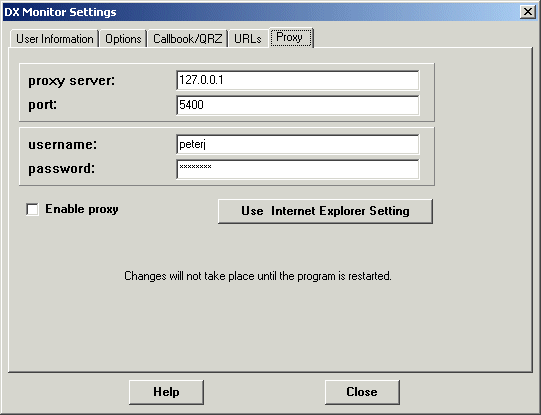
If you are behind a Corporate firewall, it may be necessary to enter the parameters of your proxy server. If not, leave all items on this page blank. Proxy information can be obtained from your network administrator, or you can look it up in the settings used to configure your web browser.
Username. Some proxy servers require a username and password. If yours does not, this entry must be blank.
Password. This password will be saved in the DXMON.INI file in plain text. If you have a security concern, you have been warned. If anyone asks for it, I can probably add a simple encryption scheme to the entry.
Enable Proxy Server. When checked, DX Monitor sends requests via the proxy server. Otherwise, DX Monitor sends requests for pages directly.
Use Internet Explorer Setting. Pressing this button will ask Internet Explorer what proxy server it is using and fill in the blanks for the server and host. It may still be necessary to fill in the user name and password. It will also be necessary to Check the Enable Proxy box.
Some accelerators enable and disable the proxy regularly. At this point, DX Monitor will not follow the enabling and disabling automatically as I am not sure how many users this affects. If you would like this feature, let me know.
Dialup Acceleration. If your ISP has an accelerator available such as Slipstream or a similar service, you should enter the proxy information for accessing the accelerator proxy. The DX Summit and other pages accessed by DX Monitor can be highly compressed by the accelerator software resulting in very good download speeds even on slow dialup lines.
[Contents] [Introduction] [Preferences ] [Operation] [Maps] [Telnet] [FAQ]