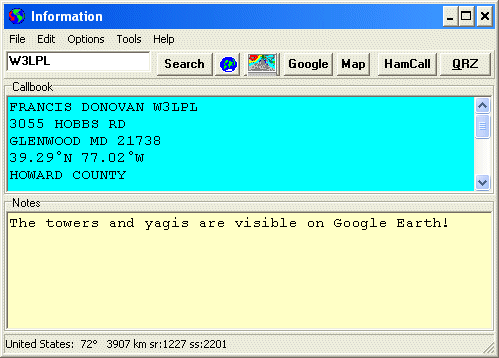
Station Information Window
[Contents] [Introduction] [Preferences ] [Operation] [Maps] [Telnet] [FAQ]
Station Information Window
The Station Information Window centralizes all the information sources about a particular callsign. First, it will perform a lookup on various databases on CD or your hard drive. At present, the RAC Callbook CD and the free K4HAV FCC/VE Database are supported. Quick buttons will search for information on the QRZ and HamCall web sites or Google for other sources. Notes may be taken which will be displayed any time the callsign is entered.
Station Information Window
Press F11 to open the Station Information Window from other windows. If a callsign is selected, it will be automatically shown in the edit box. Station Information is also available on many of the right-click popup menus throughout the program.
If the window is opened with a callsign present, DX Monitor will search the Callbook and/or the K4HAV Database for a match and display the information in the Callbook window. If available, the name, address, Latitude and Longitude and US County will be shown.
The status bar at the bottom will show the beam heading, distance and sunrise and sunset times.
Enter a callsign and press the Enter key to start a search. If notes have been saved, they will appear in the Notes Window.
Press the search button to start a search and show notes. Coming soon: information saved in the form of text or web pages will also be searched and indexed. Remind me if you are waiting for this features.
Press the HamCap Button to run the HamCap program to check the propagation from your location to the DX Station.
Press the map button to locate this station on the map.
Search Google for information about the station.
Search the HamCall web site for information about this station.
Search the QRZ web site for information about this station.
This is an edit window. You can use the normal editing keys (ctl-c, ctl-x, ctl-v, ctl-z) to edit the address shown and cut and paste it to another program.
A free form area for typing or pasting notes about a station. Notes are saved in the folder Info in the DX Monitor folder. Each note is in the form of callsign.txt. VE3EJ's notes can be found in c:\Program Files\DX Monitor\Info\VE3EJ.txt.
When a callsign is entered, or the window is shown with a callsign present, any notes will be displayed. Changes are saved automatically. Normal text editing keys work (ctl-c, ctl-x, ctl-v, ctl-z, ctl-a).
Open .... Open a Notes file for editing.
Save. Save the current notes file to the name used when opening it.
Save As .... Save the notes file to a different name.
Close. Close this window. Or press the esc key, or type Alt+F4.
Options Menu
Select Font. Select the font to be used for display in the Notes and Callbook Windows.
Select Background Color. Select the background color for the Notes window.
Build FCC Database. Before using the K4HAV FCC and VE Database, it is necessary to install it in DX Monitor. The data will occupy approximately 30 Megabytes of disk space after installation. More space is required during the installation process.
DX Monitor's interface to the database was not built for memory efficiency. I would not expect good performance (if it works at all) on computers with limited memory capacity.
|
Installation Steps
|
Search. Search the documentation for words or phrases.
Help F1. Help for this Window.
[Contents] [Introduction] [Preferences ] [Operation] [Maps] [Telnet] [FAQ]
 HamCap Button
 Map Button
