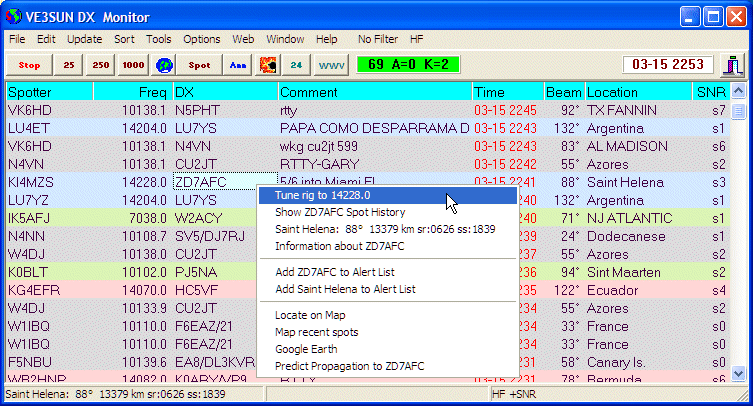
 flaming Hot Spots button for a list of the hottest DX right now.
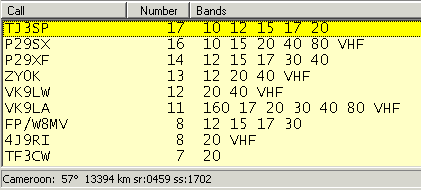
Top Spots in Past 3 Hours
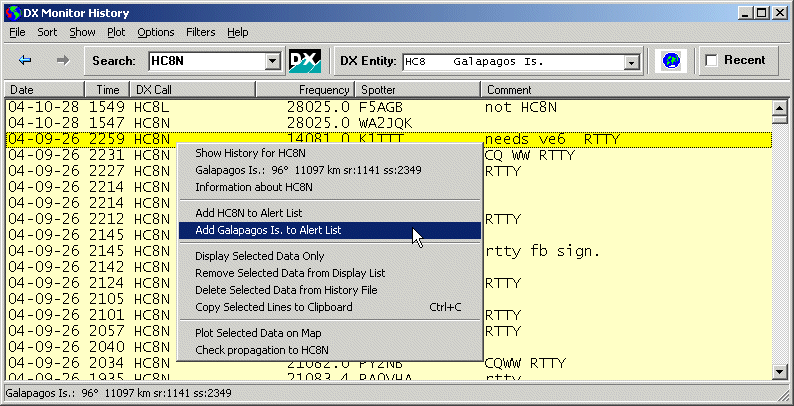
Recent spots of P29SX
 Map Button to plot all the paths on the map.
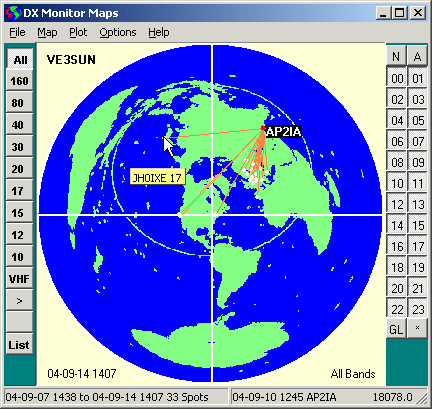
Propagation to AP2IA
[Contents] [Introduction] [Preferences ] [Operation] [Maps] [Telnet] [FAQ]
Installation is now handled by an InstallShield Wizard. By default, all of DX Monitor's files will be placed in a folder called DX Monitor usually in the Program Files folder. Subfolders will be created as necessary by the program.
The Data subfolder contains the accumulated history of DX spots and any custom filters you have created.
To remove DX Monitor, just delete the DX Monitor folder and it will be gone. DX Monitor does not store information in the registry.
Installation
flaming Hot Spots button for a list of the hottest DX right now.
Top Spots in Past 3 Hours
Recent spots of P29SX
Map Button to plot all the paths on the map.
Propagation to AP2IA
In general, throughout the program, the Help menu will take you to specific help pages for that window.
The Help Search will search all of the pages for references and produce an index to them with summaries.
[Contents] [Introduction] [Preferences ] [Operation] [Maps] [Telnet] [FAQ]