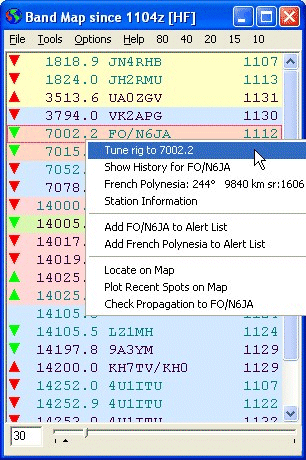
Band Map showing recents DX by frequency
[Contents] [Introduction] [Preferences ] [Operation] [Maps] [Telnet] [FAQ]
Band Map
The Band Map is a display of recent spots by frequency. This display is user-configurable in many ways including the length of time to display, the frequencies to include, the color scheme, and whether to show beam headings. Recent spots and DX Alerts can be highlighted in different colors.
Band Map showing recents DX by frequency
The position of the Time Slider sets the length of time to display spots in the Band Map Window. This time is indicated on the left. The arrow keys will adjust the slider in 1 minute increments. Spots posted longer ago than the time indicated (in minutes) in the box to the left of the slider will be ignored.
To change the time for highlighting recent spots, move the slider to the desired length of time
and right click with the mouse. Click on Set Recent Time to set. Then move the slider
to the desired time for all spots. A small triangle will indicate the "recent time" on the slider
and the time will be shown in the Options Menu beside the Recent Spot color selection.
Popup Menu
Clicking (or right-clicking) on a callsign will bring up a popup menu with information about the station. The country, beam heading, and sunrise and sunset times are shown.
Clicking on the callsign in the popup menu will show the History Window with all of the spots of this callsign as well as spots made by that station. See the History Help Page for how to make the most use of the History Window.
Clicking on the country will show the history of DX spots from the same DXCC country as the station selected in the History Window.
Clicking on Web Info will show the sub-menu. You may select any option to find more about the station from QRZ, HamCall or Google. The information will be displayed in your default web browser.
You can add the specific callsign, or all stations from that DXCC country to the Alert List by selecting from the popup menu. This will bring up the Alert List Edit Window allowing you to modify the entry before adding it.
Locate Station on Map. Show the map and locate the station under the cursor.
If the Map Window is already showing, just clicking on a callsign will locate the station on the map.
Plot Recent Spots on Map. Shows a few of the most recent spots on the map. Double Click the station on the map to see more spots.
Check Propagation. Use HamCap to check the propagation between your location and the DX Station on the frequency shown.
Save As ... allows you to save the Band Map to a text file.
Hide Main Window will hide the main DX Monitor Window if you only want the Band Map on the screen. Click again to bring it back, or close the Band Map Window.
Close closes the Band Map Window.
Options Menu
Select Filter and Colors. A submenu of available filters is shown. Filters define which frequencies will be displayed and which frequencies will be hidden. They also define the colour of the font and the background color for each entry. Several filters are supplied with DX Monitor, but you may wish to create your own filter for special purposes and to suit your eyesight and monitor. The currently selected filter is shown in the title bar of the Band Map Window.
To modify or create a new filter, select Edit Filter ... from the filter list submenu. The Filter Editor Window will appear and you can make modifications or create a new filter. See the Filter Editor Help page for more help on using the Filter Editor.
Country Filter. The country filter is useful when there is a contest on. If you are in the contest, you don't want to see spots from outside the scope of the contest. If you are not in the contest you don't want to see spots from all the contesters.
Enable. Toggle the Country Filter on or off. If enabled, the menu item is checked.
Edit Country Filter.
The Country Filter Editor makes it easy to set up and save filters for different contests or other purposes. On the left is the list of countries excluded. On the right is the list of countries that the filter will include in the display.
The same country filter will apply to the Band Map and the Main Window if enabled.
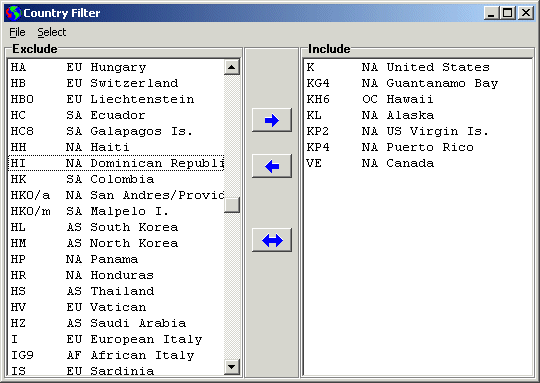
Select multiple countries by clicking, holding the control or shift keys to select multiple entries. Use the arrows in the center to move the selected list to the right or left, or to exchange the entire list.
File - Reset. Reset the country list to exclude all countries. A good starting point for creating a new filter.
File - Open. Open a saved country filter list.
File - Save As. Save a country filter list. The list is a text file.
File - Close. Close the window.
Select - All ctrl-A. Select all the countries in the lists.
Select - None ctrl-N. Deselect all the countries in the lists.
Select - Europe, North America, South America, Asia, Oceania, Africa. Select countries by continent.
Select - US/VE. Select the US and Canadian area used in many ARRL contests.
Show All Alerts (Ignore Filter). If checked, this option tells the program to ignore the filter when a DX station listed in your Alert List is spotted. If not checked, you will only see the alert if the frequency is within the filter range.
Show Beam Heading. If checked, the beam heading is shown for each station appearing in the Band Map. If you have a vertical or a slow computer, leave this option off and the window will refresh more quickly.
Local Spotters Only. If this option is selected, the only spots you will see are those from spotters within the range set by the User Preferences | Options Tab | Local Spotter Range. For quick access, pressing ctrl-L toggles this option so you can see the locally spotted DX and the total DX available from the world-wide network of spotters.
By popular request, toggling the Local Spotter option will operate simultaneously on the Band Map and Main Windows. If others find they would rather have separate control, I will make the chained operation a user preference.
Set Display Font lets you select the font to display the text. A monospace font such as Courier or the Console fonts must be used to maintain the columns. The font size and style may also be changed to make the display easier to read.
Color for Recent Spots. The time for recent spots is shown. Select a different font color to highlight newer spots on the Band Map by editing the filter using the Filter Editor. Use the slider with the right mouse button to change the length of time considered “recent”.
Color for Older Spots. Select a font color to use for the older spots in the filter using the Filter Editor. This overrides the display color specified by the selected filter, but does not permanently change the filter setting.
Set Font Color for Alerts. Select a color scheme to use for stations that are listed in the Alert List. The default is red on a white background.
Show Band Buttons. Show buttons in the menu bar for 80 - 40 - 20 - 15 - 10 meters. One click will move the band map display to those bands.
Show More Band Buttons. Show buttons for 160 - 30 - 17 - 12 - VHF. If you have a narrow window for the Band Map, these buttons may flow to a second line. If there are no stations on a band, VHF, for example, the button will appear to not operate.
Show Band Map at Startup. If selected, the band map will automatically appear a few seconds after you start the DX Monitor program. Otherwise, you can show it by pressing ctl-B at any time, or selecting Band Map from the Windows menu.
Dock to Main Window. If enabled, the band map window is locked to the right side of the DX Monitor main window and adjusts its height to the same height.
Update Menu
Refresh Now. Forces an update of the Band Map based on the spots in the history database. Pressing F5 is a shortcut for refresh.
Refresh Automatically. If enabled, the window is refreshed automatically every 15 seconds. This is the normal operating mode.
Help Menu
Help displays this Help page using your default web browser.
Band Buttons. The band buttons scroll the bandmap to the bottom of the selected band, providing a quick one touch shortcut.
[Contents] [Introduction] [Preferences ] [Operation] [Maps] [Telnet] [FAQ]